Atom Tools for Webflow
Manage component classes with Class Helper and prepare SVG icons with SVG Optimizer—all in one Chrome extension. Class Helper works directly in Webflow Designer, while SVG Optimizer opens in a side panel beside your page.
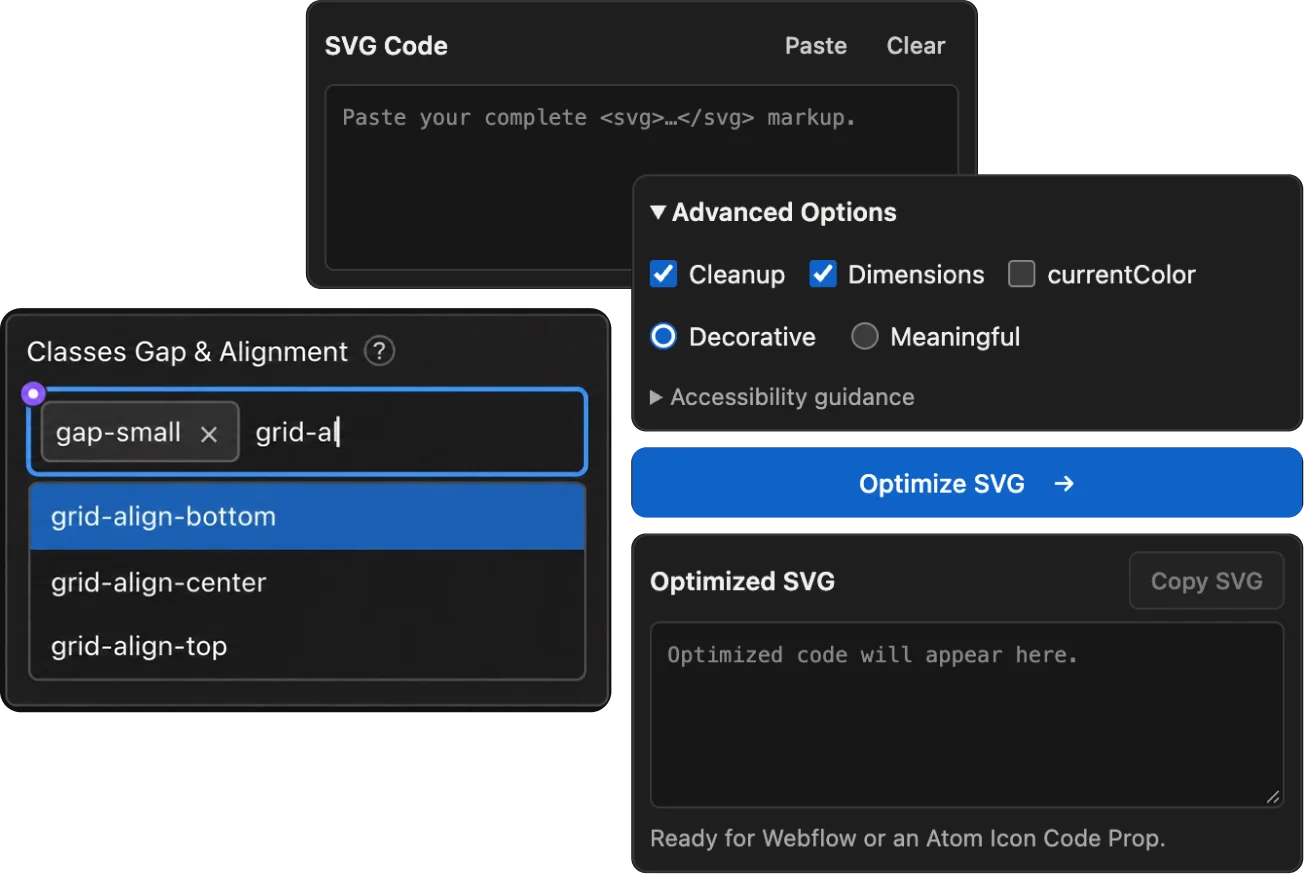
SVG Optimizer
Prepare SVG icons for Webflow without leaving your page. Open Atom Tools from Chrome’s toolbar, then choose SVG Optimizer in the side panel. No Atom account or Webflow project is required.
- Paste your SVG code into the original code field.
- Open Advanced Options if you want to change the cleanup or accessibility settings. Original colors are kept by default. Select currentColor to let supported solid-color icons inherit a text-color class or theme color.
- Click Optimize SVG to clean and sanitize the code, then review the preview and any warnings.
- Click Copy SVG and paste the result into a Webflow Code Embed or the SVG Code property of an Atom Icon component.
The optimizer can remove fixed width and height while preserving the viewBox. Choose Decorative for visual icons or Meaningful to add an accessible label. For an icon-only button, give the button itself an accessible name.
Complex artwork, gradients, masks, and filters may keep their original colors to preserve their appearance. Review the result before using it.
All SVG processing happens locally in your browser. Your pasted code is not uploaded. The panel supports light and dark themes and keeps your unfinished work while you switch tools within the current panel session.
Class Helper
Class Helper adds class autocomplete to Webflow component text properties named “Class” or “Classes”. Search your project’s loaded CSS, select suggestions, and manage classes as removable tags. Works with any Webflow framework.
- Select a component with a text property whose name begins with Class or Classes.
- Click the property field and start typing a class name.
- Select a suggestion with your mouse, or use the arrow keys and press Enter.
- Click × on a tag to remove that class.
To add another class, click the free space after the existing tags and keep typing. Press Backspace with an empty search field to remove the last class, or Escape to cancel your search.
Class values remain ordinary space-separated text in Webflow. Your components continue to work when the extension is disabled or uninstalled.
Suggestions come from the project CSS currently loaded in Designer. Some unused classes may not appear. You can still enter a complete class name manually and press Space, or Enter when no suggestion is selected.
Support
If Class Helper does not appear, check that the extension is enabled and reload Webflow Designer. The property must be a text property with a name beginning with Class or Classes, regardless of capitalization.
Atom is an independent tool developed by Atom Agency. It is not affiliated with or endorsed by Webflow.
If another extension modifies the same property fields, try disabling it and reload Designer.
Privacy Policy
Last updated: November 6, 2026
This policy applies to the Atom Tools Chrome extension, including Class Helper and SVG Optimizer, developed by Atom Agency.
Class Helper reads CSS class names from the project CSS loaded in Webflow Designer, together with component property names and values. It uses this information to identify supported fields, display class suggestions and tags, and apply the changes you choose.
SVG Optimizer processes the SVG code you paste and the options you select to clean the code, generate a preview, and prepare the output. This processing takes place locally in your browser. The extension does not upload your SVG code or transmit project information to Atom Agency or third parties.
Selected classes are saved as ordinary text in your existing Webflow component properties. Webflow handles the storage of those project changes through its own services. Removing the extension does not remove class values already saved in Webflow.
Class suggestions and unfinished SVG work are held temporarily in browser memory. SVG work remains available when switching tools within the current panel session and is cleared when the panel document is unloaded or reloaded. The extension does not maintain a separate database or persistent extension storage of your project data or SVG code.
The extension contains no analytics, advertising, or tracking. It does not sell or share your project information or browsing activity.
This policy describes the extension itself. Visiting the Atom website or contacting support is separate from using the extension. If you contact us, we receive the information you choose to include and use it to respond to your request.
We will update this policy if the extension’s data handling changes. For privacy questions, contact work@atomagency.co.
About
Atom is an independent tool developed by Atom Agency. It is not affiliated with or endorsed by Webflow.